Automatically save and manage your network connection profiles for hassle-free switching
Automatically save and manage your network connection profiles for hassle-free switching
Vote (2 votes)
Program license Free
Developer Stafney
Version 1.2
Works under Windows
Vote
(2 votes)
Developer
Stafney
Works under
Windows
Program license
Free
Version
1.2
Pros
- Saves multiple network profiles for easy switching
- Automatic detection and application of previous settings
- Minimal system resource usage
- Reduces manual configuration errors
- Simple, intuitive interface
Cons
- Lacks advanced diagnostic or troubleshooting tools
- Interface may seem basic to some users
- No direct IPv6 support in some versions
Easily manage multiple network profiles and switch IP settings quickly.
Overview of IpManager
IpManager is designed for users who frequently move between different networks and need a fast, reliable way to handle their connection settings. Instead of manually adjusting TCP/IP, DNS, and gateway configurations each time, this utility allows users to manage multiple profiles and switch between them with minimal effort.
Installation and Setup
The installation process uses a lightweight Windows Installer 2.0 "Install From Web" approach, which quickly sets up the bootstrap that launches the full installer. This efficient method means users will have the program up and running without excessive downloads or confusion.
User Interface and Functionality
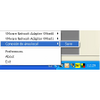
IpManager integrates neatly into the system tray, where a small icon provides instant access to essential functions. The interface is straightforward, prioritizing function over flash, making it easy for users to create, edit, and remove network profiles.
When connecting to a new network, IpManager can automatically detect and record the current connection settings. These details are saved in a profile, including important variables such as IP address, subnet mask, default gateway, DNS servers, and proxy configurations. When returning to a previous location, users can apply the relevant profile, instantly reconfiguring their network settings without digging through Windows' cumbersome menus.
Key Features
Quick Profile Switching: Shift between approved network configurations with just a couple of clicks, making it ideal for those who use their devices at various locations.
Automatic Profile Detection: The utility can remember networks that have been used before and present the appropriate settings, reducing user intervention.
Lightweight Background Operation: The application runs quietly in the background, consuming minimal system resources and providing notifications when profiles change or network issues arise.
Custom Configuration: Advanced users can dig into individual settings for each profile, tailoring every aspect of the network setup as required for complex workflows.
Performance and Reliability
In operation, IpManager proves to be stable and responsive, applying saved profiles almost instantly. This is particularly beneficial for laptop users who connect to office, home, or hotel networks regularly. There is a noticeable reduction in connection errors and time wasted troubleshooting network issues related to mismatched settings.
Who Should Use IpManager?
Mobile professionals, IT support personnel, and anyone regularly connecting to multiple network environments will benefit from the convenience and time-saving offered by IpManager. While average home users may not need such a tool, it becomes indispensable for those whose routines involve frequent changes between WiFi networks or LAN setups.
Conclusion
IpManager delivers a no-nonsense approach to managing multiple TCP/IP configurations, making it a valuable tool for business travelers, remote workers, or anyone tired of manual connection adjustments. Its efficient system tray integration and automatic profile management set it apart from manual methods, and while the interface is utilitarian, its reliability and focus on core function mark it as a wise choice for busy professionals.
Pros
- Saves multiple network profiles for easy switching
- Automatic detection and application of previous settings
- Minimal system resource usage
- Reduces manual configuration errors
- Simple, intuitive interface
Cons
- Lacks advanced diagnostic or troubleshooting tools
- Interface may seem basic to some users
- No direct IPv6 support in some versions